


Do you know about “What is a mobile hotspot”. Hotspotting is where a phone or a hotspot device can share a 4G/5G data connection via Wi-Fi. Although your laptop will connect to this as if it were a standard Wi-Fi network, the data is in fact sent using a mobile network.
It can be particularly useful if the free-to-use Wi-Fi at a café fails during a call, if your home broadband connection is disrupted or indeed if you require internet access for your laptop when out and about. Below is information on how hotspotting works along with associated data consumption and security tips.
Key takeaways
- As well as requiring a mobile data connection, you also need a phone/data SIM which permits hotspotting. There is no requirement for pre-existing Wi-Fi.
- Whilst a phone is good for ad-hoc hotspotting, a seperate hotspot device is better for extended periods and/or multi-person use.
- Both the mobile and local device connections will affect the speed of your hotspot.
- Ensure that you secure your hotspot using either WPA3 or WPA2 and create a robust password. Monitor your data allowance.
What is a mobile hotspot?
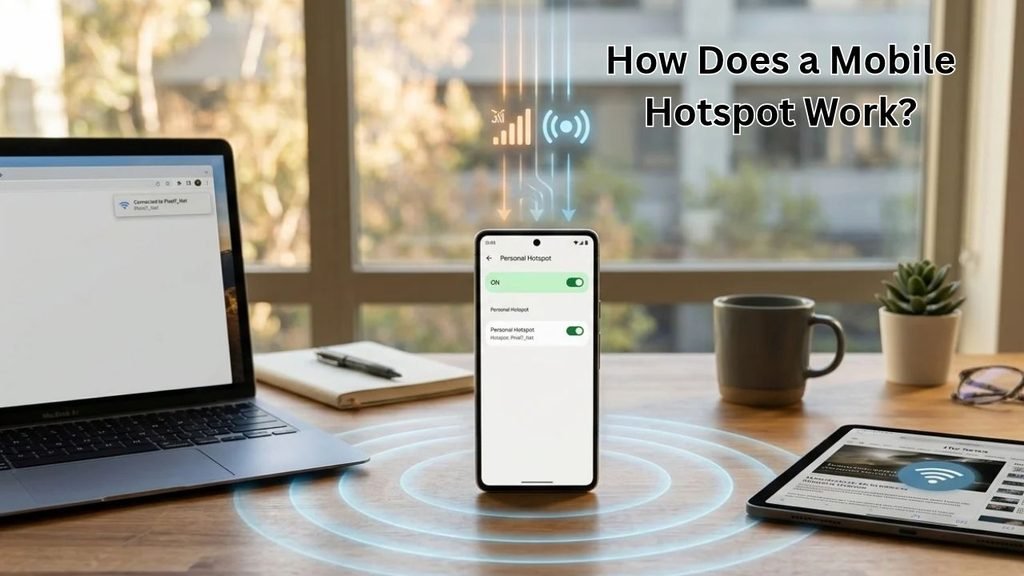
Whilst home routers access the internet via either fibre, cable or DSL; mobile hotspots connect to a cell tower and use a SIM or eSIM to do so.
Mobile hotspot vs. Wi-Fi hotspot vs. tethering
| Term | What it means | Internet source |
|---|---|---|
| Wi-Fi hotspot | A place or access point offering wireless internet, such as an airport or café | Usually a fixed line |
| Mobile hotspot | A portable device or phone feature that creates its own network | Cellular |
| Tethering | Sharing a phone’s connection over Wi-Fi, USB or Bluetooth | Usually cellular |
Personal Hotspot, MiFi and other names
Apple refers to the ‘Personal Hotspot’ functionality on iPhone and iPad. On most Android phones, this functionality is referred to as ‘Hotspot’ or ‘Hotspot & tethering’. Portable hotspots are also available as separate devices and marketed as such and as pocket routers and MiFi.
How does a mobile hotspot work?
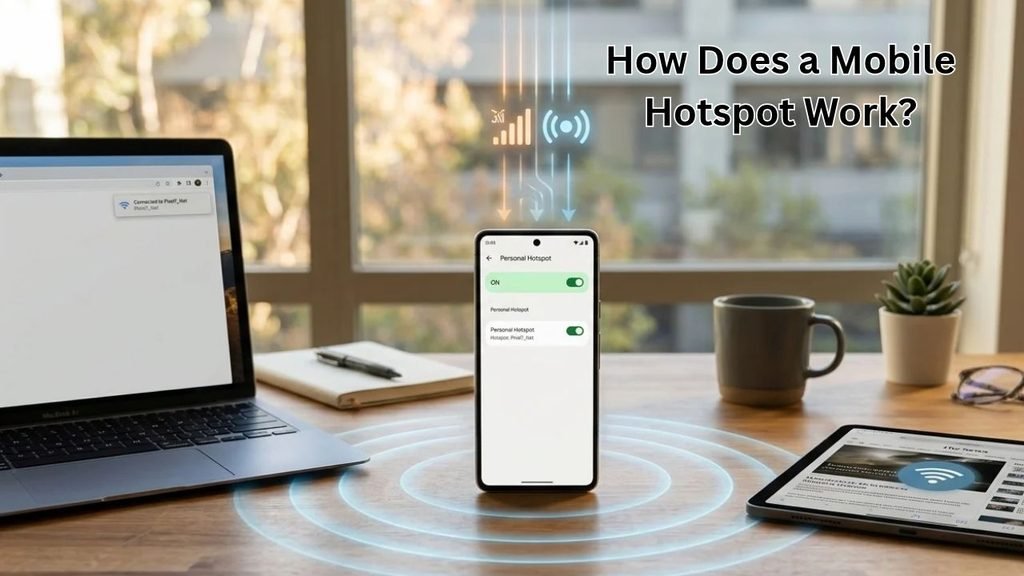
The mobile hotspot combines a cellular connection (to your mobile service provider) and a mini local network. It then transfers data between these.
Internet ⇄ Carrier network ⇄ Cell tower ⇄ Modem (SIM/eSIM) ⇄ Router software ⇄ Wi-Fi / USB / Bluetooth ⇄ Your laptop
The cellular backhaul
Within the phone or mobile hotspot device there is a modem which verifies itself to the service provider via the SIM or eSIM. It then establishes a data connection through either 4G LTE or 5G. The Access Point Name (APN) specifies which data portal should be accessed. Usually the phone will automatically set up the APN. However, if this is incorrectly configured, you may lose both signal and internet.
The local network
- The mobile hotspot can broadcast its name (SSID)., the network name you see in your Wi-Fi list.
- A device then connects to it by entering a Wi-Fi password.
- DHCP (Dynamic Host Configuration Protocol) then issues a device with a unique internal IP address.
- NAT (Network Address Translation) enables multiple devices on the network to share the single mobile data connection.
- Responses from the internet are re-routed to the originating device.
Why your speed has two limits
Information is sent along both connections. The slower of these two connections will therefore determine your maximum speed. Even if you have a high-speed Wi-Fi connection, if your mobile data connection only provides 40 Mbps, then this will still be the maximum speed at which you can download. Conversely, if although your mobile data is highly speedy, your laptop’s Wi-Fi is outdated or busy then it will be the shortcoming in the second connection.
Types of mobile hotspots
There are three methods to access a mobile network – using a smartphone, a hotspot and a USB modem. A travel router is also commonly mixed up with these.
| Type | Internet source | Power | Devices | Extra cost | Best for |
|---|---|---|---|---|---|
| Smartphone hotspot | Phone’s SIM/eSIM | Phone battery | Limited by phone and carrier | Often none if the plan includes it | Occasional use |
| Dedicated hotspot | Own SIM/eSIM | Own battery | Usually more than a phone | Device plus data plan | Remote work, groups |
| USB modem (dongle) | Own SIM | Host computer | Typically one | Device plus data plan | A single laptop |
| Travel router | Wi-Fi, Ethernet or phone tethering; some models have a modem | USB power or battery | Several | Router | Re-sharing hotel or phone internet |
Smartphone hotspot
As you already have your phone, this is the most convenient solution. However, it can cause your phone to run down, overheat and incur extra costs or a data limit on your phone contract.
Dedicated hotspot device
This allows you to keep your phone separate and has its own power source. An example of such a hotspot is the Netgear Nighthawk M7 which boasts Wi-Fi 7 capability, a maximum of 32 connections, 10 hours battery and mobile network speeds of 4Gbps. Again, these are the best figures and in practice will likely be less than this.
USB modem (dongle)
Inserted into a computer, this is powered by the computer. It is straightforward but is restricted to just that computer.
Is a travel router a hotspot?
Not always. Whereas hotspots share a network, a travel router can take an existing network and then create a personal network from it. Should it not include a mobile modem, it will not be able to connect to a mobile phone tower independently.
Read Also: Crew CloudySocial || Phyzii.cirrius.in: Login Guide, Features, Benefits, and Troubleshooting
Wi-Fi vs. USB vs. Bluetooth tethering
Wi-Fi is the most flexible method, while USB is often the steadiest for one computer.
| Method | Setup | Relative speed | Phone battery | Use it when |
|---|---|---|---|---|
| Wi-Fi | Pick network, enter password | Fast | Higher drain | You have several devices |
| USB | Plug in cable, enable tethering | Fast, with no wireless interference | Can charge from the computer | One laptop needs a stable link |
| Bluetooth | Pair, then connect | Slowest | Lower drain | Light browsing or messaging |
4G, 5G and Wi-Fi: what affects hotspot speed?
In addition to the specification shown on the box, factors such as signal, tower and plan, and which frequency is used will also affect performance.
4G LTE vs. 5G
Although 5G can offer faster speeds and reduced latency compared to 4G, frequency is also an important consideration:
- Low-band 5G has good range and penetration and offers slightly increased speeds.
- Mid-band 5G is good at both range and speed.
- mmWave 5G provides very fast speeds however it has limited range and is readily obstructed.
2.4 GHz, 5 GHz and 6 GHz
| Band | Range | Throughput | Compatibility |
|---|---|---|---|
| 2.4 GHz | Longest | Lowest | Widest, including older devices |
| 5 GHz | Medium | Higher | Most modern devices |
| 6 GHz | Shortest | High, with more clean spectrum | Wi-Fi 6E or Wi-Fi 7 hardware, where permitted |
Wi-Fi 6, 6E and 7 features pay off only when both the hotspot and your device support them.
Signal strength, congestion and throttling
- RSRP is a measure of signal strength. The lower the value (but approaching zero), the stronger the signal.
- SINR is a ratio of signal to noise and interference. Again, the higher this value the better.
- Even if all the bars are showing full signal, a congested tower can still result in slower speeds.
- Speed can also be restricted by a plan. This commonly occurs once a certain volume of data has been downloaded from a hotspot.
Being close to a window and/or outside can also boost signal performance.
Latency, gaming and CGNAT
Bandwidth is the volume of data that can be sent in one second. Latency (ping) refers to the time taken to send and receive information and jitter is the change in latency. Both are problematic for gaming and video conferencing even on a high-speed connection.
Many mobile network providers also provide a service called CGNAT (carrier grade NAT). This causes multiple customers to share the same external IP address. It can then stop people configuring their own ports and/or accessing self-run servers. In addition, game consoles can identify a restrictive NAT.
How to set up a mobile hotspot
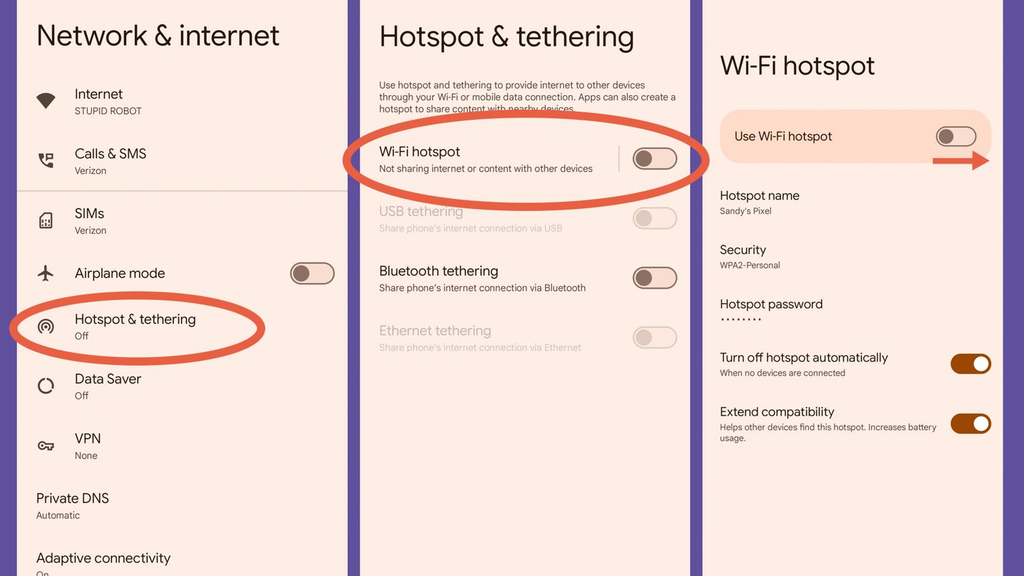
A number of settings need to be configured. Check that your phone contract allows for a hotspot and that mobile data is enabled.
On iPhone
iPhone:
- Select Settings followed by Personal Hotspot (alternatively, go to Mobile Service then Personal Hotspot – on some phones this appears under Cellular).
- Enable the option ‘Allow Others to Join’.
- Use Wi-Fi Password to generate a password, comprising of eight or more characters.
On Android
- From the top of your screen, drag down and select Hotspot. If required, add it to your home screen using Edit.
- Long-press to view the network name, password and encryption method.
- Then connect another device.
According to Google’s support page, a maximum of 10 devices can be simultaneously shared via Wi-Fi. However, the options and maximum number may differ depending on the phone, Android operating system and provider.
On a dedicated hotspot device
- Place a SIM card within (or enable an eSIM), and charge then switch on the hotspot hardware.
- Access the relevant app, display or website for administration.
- Alter both the network and admin passwords.
- If no internet is available, verify the APN and update the device’s firmware where necessary.
Connecting a laptop
The Wi-Fi section on Windows or macOS, select the hotspot and input its password. On Windows, designate the network as metered in order to restrict certain background downloads.
How much data does a mobile hotspot use?
| Netflix quality | Maximum per hour | Hours from 10 GB at that maximum |
|---|---|---|
| Low | 0.3 GB | About 33 |
| Medium | 0.7 GB | About 14 |
| High, standard definition | 1 GB | 10 |
| High, HD | 3 GB | About 3.3 |
| High, 4K | 7 GB | About 1.4 |
Estimate any activity
Use this formula with the average bitrate:
GB per hour = average Mbps × 0.45
You will typically consume around 2.25Gb an hour for a 5Mbps connection. This has been calculated by dividing 3,600 seconds by 8 (bits in a byte) and converting it into gigabytes. Data consumption can differ greatly depending on whether you are streaming, gaming or downloading. After an average time online therefore, check how much data your device has used. Downloads will also always be at least the size of the item being downloaded.
How to reduce hotspot data usage
- Reduce the video quality on all streaming services.
- On Windows, classify your connection as ‘metered’.
- Enable Low Data Mode on your iPhone, iPad or Mac for the hotspot.
- Stop backing up, syncing pictures, updating games and downloading big operating system files.
- Pre-download maps, music and videos.
- Switch off any devices that you are not using and activate a data alert.
Is a mobile hotspot secure?
A controlled Wi-Fi is usually more secure than general Wi-Fi. However, there are still security risks.
Use WPA3 or WPA2
Set up your Wi-Fi to use either WPA3 or WPA2. Use WPA3 where possible (if all of your devices can do so). Where not, use a hybrid WPA2/WPA3 or WPA2 only setting. Always ensure that your Wi-Fi is not uncontrolled and set a complex password (which is not also used for other sites/ services).
Harden your hotspot
- Do not name your Wi-Fi after yourself, a room number or company.
- Review devices and disconnect any unknown equipment.
- Ensure that both your phone and/or hotspot software is current.
- Switch off your hotspot either manually or automatically.
Do you need a VPN?
Whilst Wi-Fi data is encrypted between your device and hotspot, and information sent to and from sites is encrypted using HTTPS, a VPN encrypts data between your device and a VPN server. This conceals where you are accessing from, but places responsibility for security in the hands of the VPN service. Again, a VPN will not by itself prevent phishing or malware. Confirm that your VPN does secure devices that you connect to via tethering. Note that a phone-based VPN may not do so.
Know About: How to Know WiFi Password
Mobile hotspot pros and cons
| Pros | Cons |
|---|---|
| Internet wherever there is usable coverage | Depends on signal and tower load |
| Private network that you control | Data caps and hotspot limits |
| Handy backup during broadband outages | Battery drain and heat |
| Quick to set up | Dedicated hardware and plans cost extra |
Mobile hotspot vs. home broadband: can it replace Wi-Fi?
Wi-Fi is only the local wireless link, so the real comparison is cellular internet against a fixed line.
| Factor | Mobile hotspot | Home broadband |
|---|---|---|
| Speed consistency | Varies with signal and congestion | Usually steadier, especially on fiber |
| Latency | Often higher and more variable | Often lower |
| Data allowance | Often capped for hotspot use | Often larger; depends on the provider |
| Portability | High | Fixed location |
| Many devices | Limited | Better suited |
Use a hotspot as your main connection only if coverage is strong, your usage fits the plan and you can live with speed swings. For a busy household, keep it as the backup.
Mobile hotspot not working? Quick fixes
Start by restarting both devices and installing pending updates, then match your symptom.
| Symptom | What to try |
|---|---|
| Hotspot option missing or greyed out | Turn on mobile data; ask your carrier whether your plan supports hotspot |
| Network not visible | On iPhone, try Maximize Compatibility, which uses 2.4 GHz and may reduce performance and security |
| Password rejected | Re-enter it, or forget the network and reconnect |
| Connected but no internet | Check data balance and APN; toggle airplane mode |
| Slow speed | Move near a window, try another Wi-Fi band or use USB |
| Frequent disconnects | Check auto-off timer and battery saver; let a hot device cool |
FAQs
Does a mobile hotspot use my data?
Yes – all data that is sent or received by devices via a hotspot will be consumed by your phone/plan’s data.
Can a hotspot work without Wi-Fi or a cellular signal?
Yes, there is no requirement for pre-existing Wi-Fi. However, in order for a cellular hotspot to provide internet access, it must have a cellular connection.
How many devices can connect?
This varies depending on the equipment and service provider. Up to 10 can typically be supported but specialist hotspots can support even greater numbers (see Android Help).
Does using a hotspot drain or damage the battery?
Yes – a hotspot does consume extra battery power and can cause a phone to become warm. Continued warming will hasten battery deterioration. Ensure your phone is well aired.
Can I use a mobile hotspot abroad?
Generally yes – either if your plan includes roaming, or if you insert a local SIM or travel eSIM into an appropriate and unlocked phone. Always review the hotspot policy and costs applicable in another country.
Is hotspot data different from mobile data?
Whilst both utilise the cellular network, some plans include distinct data / speed allocations for hotspots.
Which is better: a phone hotspot or a dedicated device?
For portability, phones are favourable. For regular, multi-person use and to avoid phone consumption, specialist hotspots are preferable.
Which hotspot should you use?
Occasional browsing or a short work session: your phone.
Daily remote work or several devices: a dedicated hotspot.
One laptop that needs a steady link: USB tethering.
Before buying anything, check your plan’s hotspot allowance and test your phone’s hotspot where you will actually use it.
Conclusion
The “Hotspot” is a device that can convert 4G/5G into a personal network and so allows you to connect laptops, tablets and other gadgets. It can be a good solution for those wishing to remain connected when travelling, working away from home or during a period of disrupted broadband.
Whilst the model of hotspot you choose is an important consideration, there are a number of further factors which will impact on your connection speed. These include: the strength of the 4G/5G signal, busy-ness of the mast network, the type of Wi-Fi (2.4GHz or 5GHz) and your plan’s hotspot entitlement. Video quality is also a key determinant of data consumption. Good security features will generally include a strong password together with WPA2 or WPA3 encryption and current software.
Decide which option is most suitable for your circumstances:
- For infrequent internet access or brief periods of remote working – utilise your phone’s hotspot function.
- Where you regularly work remotely and/or own numerous devices – evaluate whether you require a specific hotspot product.
- And for sole laptop users who desire a stable connection – attempt USB tethering.
Review your plan to ensure you are permitted to use a hotspot. Then trial your phone hotspot in the area where you intend to use it. Should your phone provide suitable speed, battery capacity and data provision then it is possible that you already possess sufficient hotspot functionality within your hand.